Back to Blog
How to Send High Quality Video on WhatsApp (Without It Going Blurry)
The trick to sharing videos on WhatsApp without losing quality is to compress it yourself first, then send it as a document.
The trick to sharing videos on WhatsApp without losing quality is to compress it yourself first, then send it as a document.
You just recorded a great video — sharp, clear, and worth sharing. Then you send it on WhatsApp and it arrives looking like it was filmed through a foggy window. Sound familiar?
Here’s the truth: WhatsApp compresses every video you send, regardless of whether you use the HD option or not. The HD toggle helps a little, but it’s still nowhere near the original quality. WhatsApp is built for speed and low data usage, not video fidelity — and your footage pays the price.
So if you want the other person to actually see your video the way you shot it, you need a smarter approach.
The trick is to take control of the compression before WhatsApp does. By downsizing and compressing the video yourself using a dedicated app, you produce a file that’s small enough to share — but far higher quality than what WhatsApp’s automatic compression spits out. Then you send it as a document instead of a video, which forces WhatsApp to skip its compression entirely.
Here’s how to do it step by step.
TinyFile is a video compressor app that lets you shrink your video down to a manageable file size while preserving as much visual quality as possible. Unlike WhatsApp’s blunt compression, TinyFile gives you control over the output.
Why 720p? Going lower (like 480p) saves more space but starts looking noticeably soft. Going higher (like 1080p) produces a larger file that may still trigger WhatsApp’s limits. 720p hits the best balance.
This is the key step most people don’t know about. When you send a file as a document on WhatsApp, it bypasses the video compression completely. WhatsApp treats it like a generic file attachment and sends it as-is.
Here’s how to do it:
+ icon).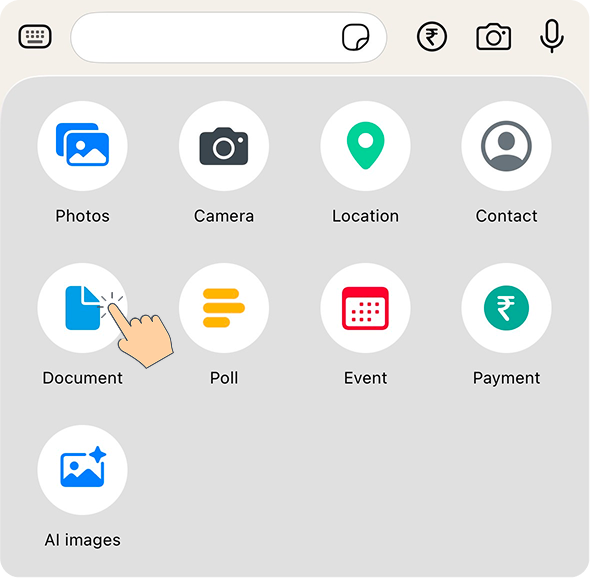
The recipient will receive the video exactly as you compressed it — no further quality loss from WhatsApp.
Note for recipients: The video will appear as a downloadable file rather than an inline video preview. They’ll just need to tap it to download and play it. It’s a small trade-off for actually being able to see the video clearly.
WhatsApp added an HD toggle for photos and videos, and while it’s better than nothing, it’s still heavily compressed. WhatsApp’s servers cap video bitrate regardless of the HD setting, meaning your 4K or even 1080p video will still come out looking degraded on the other end. The document method is the only way to fully sidestep their compression pipeline.
| Method | Quality | What Actually Happens |
|---|---|---|
| Send as Video (Standard) | Poor | Heavy compression by WhatsApp |
| Send as Video (HD) | Mediocre | Less compression, still degraded |
| Compress with TinyFile → Send as Document | Best | Your compression, zero WhatsApp compression |
The extra two minutes it takes to compress and send as a document is absolutely worth it. Your videos will look the way they’re supposed to — and the person on the other end will actually be able to tell what they’re watching.
Reduce image and video file sizes by up to 90% while maintaining quality. Perfect for saving storage space and faster uploads.


Compress images and videos preserving visual clarity without the files leaving your device.
COMPARISON
CONTACT US AT
DOWNLOAD


© Copyright 2024, All Rights Reserved by Tinyfile