Back to Blog
How to Send a Video That Is Too Large for Email
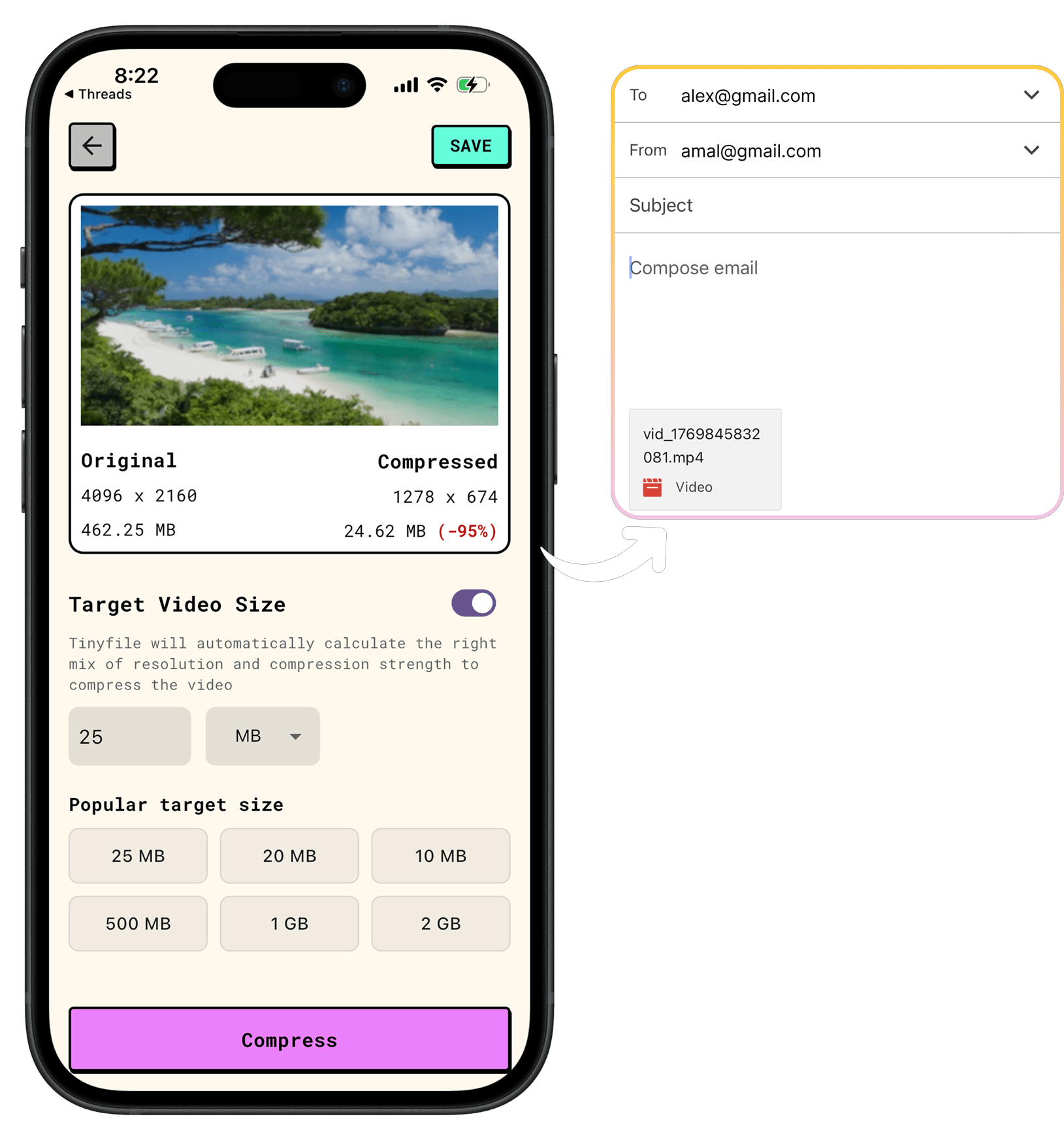
Easiest way to email a large video as an attachment by reducing it's size is with Tinyfile.
Easiest way to email a large video as an attachment by reducing it's size is with Tinyfile.
So you’ve recorded a video and now you’re wondering: how do I email a video that is too big? You’re not alone. Email providers like Gmail cap attachment sizes — Gmail’s limit is 25MB — which means even a short clip can be too large to send. And if you’re asking “can I send a 6 minute video on Gmail?” or “how do I send a longer video on Gmail?”, the answer is: yes, there is a way and also workarounds.
Here are three reliable options for sending a video that’s too large for email.
One of the quickest fixes is to simply reduce the file size of the video itself using a compression tool. Apps like TinyFile are designed specifically for this — you select your video, and TinyFile intelligently calculates the optimal compression settings and resolution needed to bring the file size down to within email attachment limits, without you having to manually fiddle with bitrates or export settings.
This is ideal if you want to keep everything in one email without sending links. The trade-off is a slight reduction in quality, but a smart compressor like TinyFile minimizes this as much as possible by finding the best balance between size and clarity for your specific video.
How to use TinyFile:
Instead of attaching the video directly, you can upload it to a cloud storage service and share a link. This works for videos of virtually any length — so if you’ve been wondering how to send a 10 minute long video, this is one of the most straightforward answers.
Both services offer generous free storage (15GB on Google Drive, 5GB on OneDrive) and the recipient can view or download the video without needing an account.
If you’d rather not deal with cloud storage accounts, a dedicated file transfer service like Smash is a great option. Smash allows you to send large files — including long videos — with no file size limit on the free plan, and the recipient simply clicks a link to download.
How to use Smash:
No account is required to send, making it one of the fastest options when you just need to get a video over to someone quickly.
Any of these methods will solve the problem of sending a video that’s too large for email — pick the one that fits your workflow best.
Reduce image and video file sizes by up to 90% while maintaining quality. Perfect for saving storage space and faster uploads.


Compress images and videos preserving visual clarity without the files leaving your device.
COMPARISON
CONTACT US AT
DOWNLOAD


© Copyright 2024, All Rights Reserved by Tinyfile