Back to Blog
How to Attach Long Video in Gmail (Over 25MB)
Easiest way to attach a long video in Gmail is by reducing it's size is with Tinyfile.
Easiest way to attach a long video in Gmail is by reducing it's size is with Tinyfile.
Gmail has a 25MB attachment limit, which means most videos — even short ones — are too large to attach directly. Whether you’re on desktop or trying to send a video in Gmail more than 25MB using your phone, you’ll hit a wall pretty quickly. The good news is there are a few reliable workarounds to get your video delivered without hassle.
Here are the 3 best options:
If you want to keep things simple and send the video as an actual email attachment (rather than a link), compressing it first is your best bet.
TinyFile is a video compressor app that intelligently calculates the correct compression settings and resolution needed to bring your video size down to the limit required for email attachments. Instead of manually guessing bitrate or resolution settings, TinyFile does the math for you — you just set your target file size, and it handles the rest while preserving as much quality as possible.
How to use it:
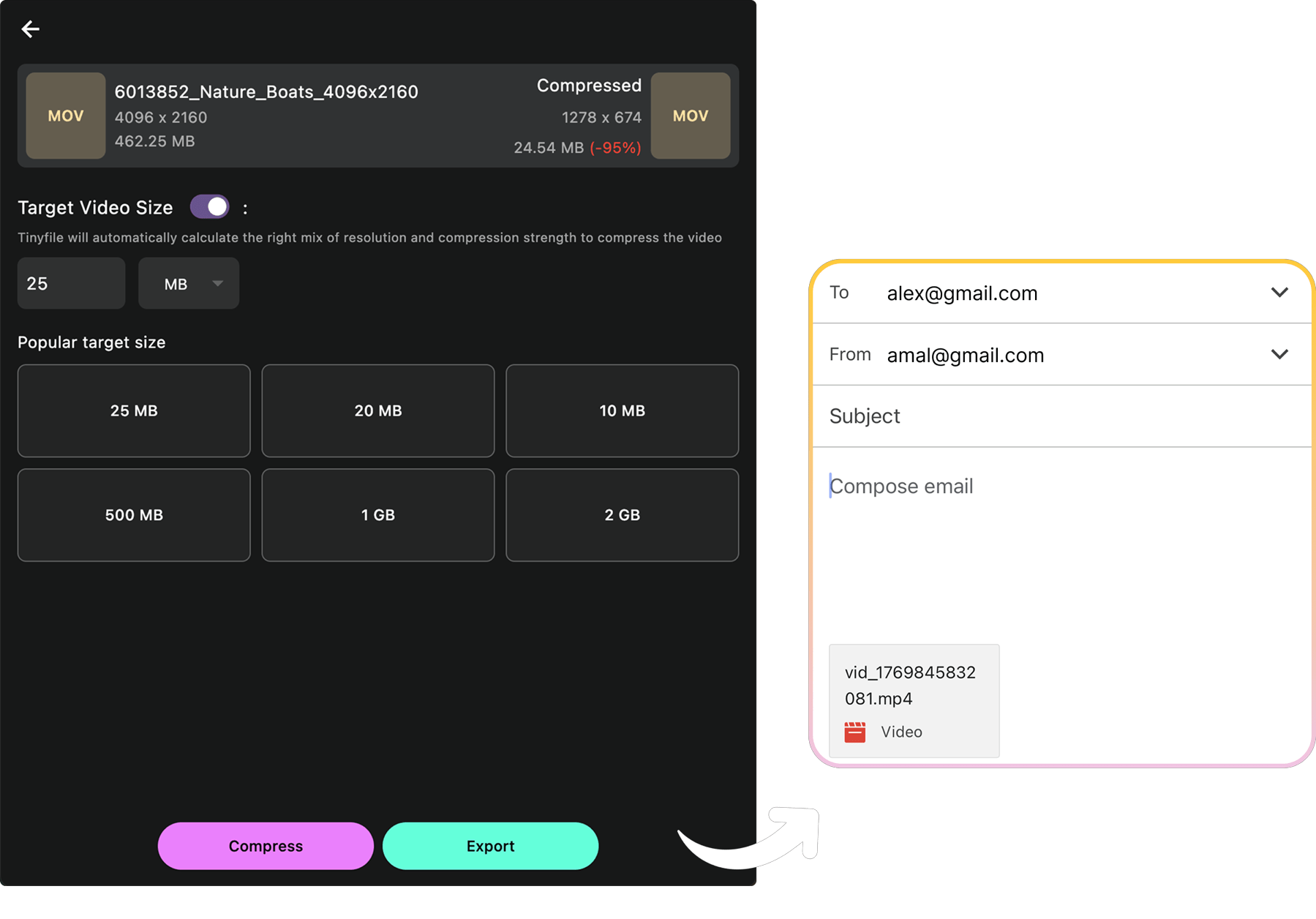
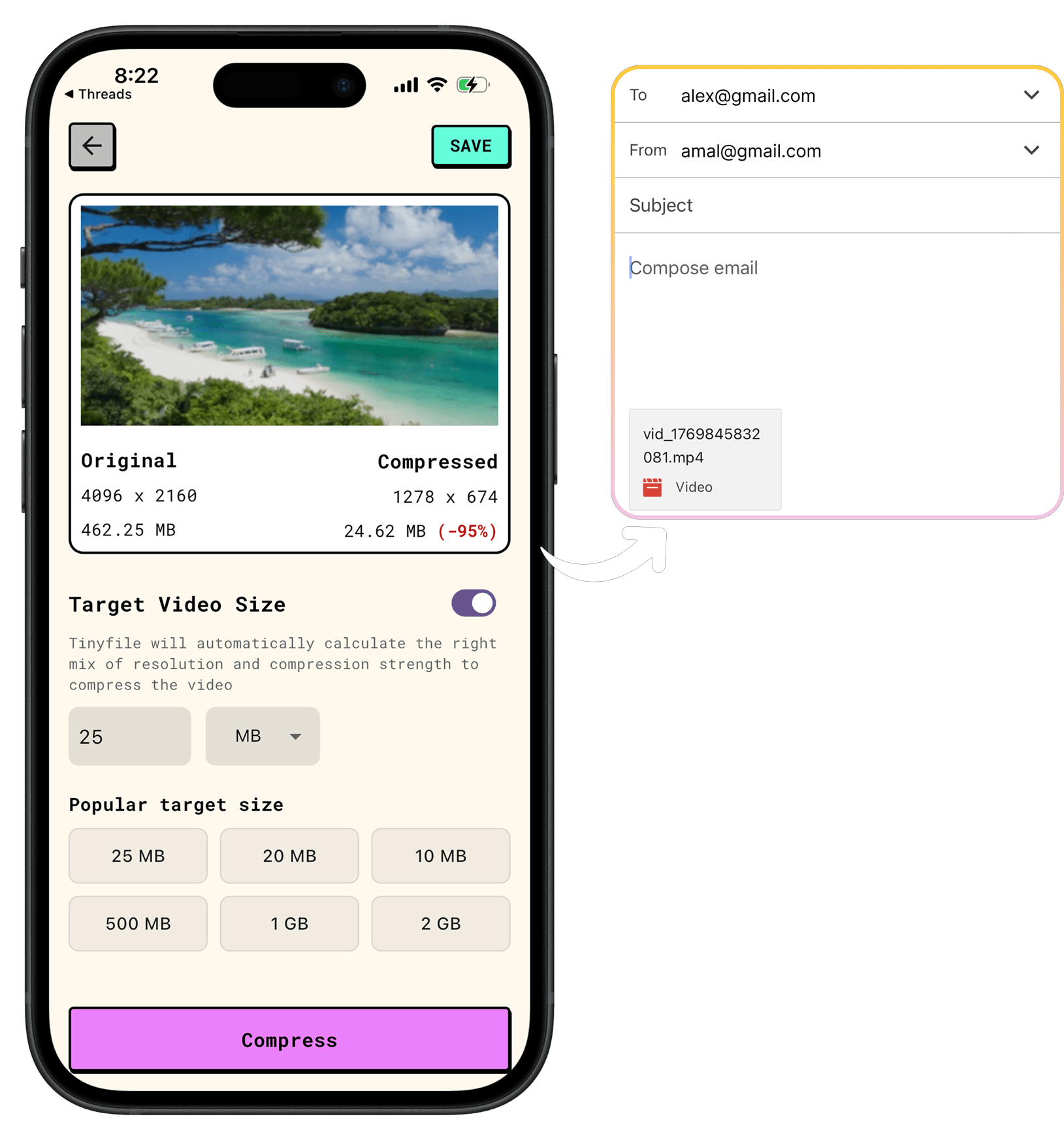
This is the best option when the recipient needs the video as a direct attachment rather than a link.
Google Drive is built right into Gmail, making this one of the easiest options — especially on mobile.
How to use it:
Gmail will often prompt you automatically to use Google Drive when it detects an attachment over 25MB, so this process can be nearly seamless.
Smash is a free file transfer service with no file size limit, making it a great option for large or high-quality videos you don’t want to compress.
How to use it:
Smash links typically stay active for 14 days on the free plan, which is plenty of time for most use cases.
| Situation | Best Option |
|---|---|
| Recipient needs it as a file attachment | TinyFile (compress it) |
| You already use Google and want convenience | Google Drive |
| Video is very large and quality matters | Smash |
No matter which method you use, you won’t be stuck staring at Gmail’s 25MB error again.
Reduce image and video file sizes by up to 90% while maintaining quality. Perfect for saving storage space and faster uploads.


Compress images and videos preserving visual clarity without the files leaving your device.
COMPARISON
CONTACT US AT
DOWNLOAD


© Copyright 2024, All Rights Reserved by Tinyfile